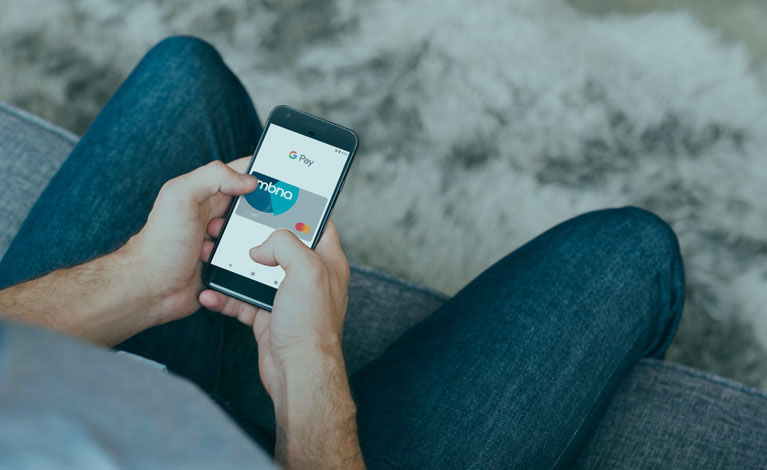
Google Pay™
The fast, simple way to pay with Google without the contactless card limit. Plus all the benefits and protection you enjoy with your MBNA credit card.
The benefits of Google Pay

-
- Download and open the Google Wallet app.
- Select Add to 'Google Wallet'.
- Select the card you want to add, then follow the on-screen instructions.
- Verify your card when asked.
- All done, you’ve added your card to Google Pay.
-
- With your Fitbit device nearby, open the Fitbit app on your phone..
- Select 'Google Wallet', then New credit or debit card, then follow the on-screen instructions.
- Verify your card when asked.
- All done, you’ve added your card to Google Pay.
-
If you’ve been unable to add your card using the Google Pay wallet, follow the step-by-step guide.
1. Go into the Google Pay wallet app and remove the card if shown as pending.
2. Log in to the mobile banking app and select ‘Cards’ from the navigation menu.
3. Select the card you want to add to Google Pay, select ‘Google Pay’ and ‘Add to Google Wallet’ then follow the onscreen instructions.
Your card is now added to Google Pay.
The easiest way to add your card to Google Pay is using our mobile banking app.
1. Log in to the app and choose 'Cards' on the bottom right. Then select 'Google Pay’.
2. Find the card you want to add. Then select 'Add to Google Pay’.
3. Confirm your card details and accept the terms and conditions.
4. All done, you've added your card to Google Pay.
Let's take a closer look
-
If you’re asked to verify your card, you can do so using the mobile banking app, with a one-time passcode (OTP), or by calling us.
You’ll need to make sure your mobile number is up to date.
-
Google Pay works with the majority of MBNA credit cards. There are a small number of card and account types you won’t be able to use with Google Pay - non-personal accounts and Electron cards.
-
To protect you from fraud, we might occasionally limit the value or number of payments you can make using Google Pay and ask you to use your card instead.
-
There is no limit to the number of cards you can have in your Google Pay wallet. But if you want the same card on 2 different devices, you will need to load the card on each device separately. The easiest way to do this is by using the mobile banking app.
-
The easiest way to see your MBNA credit card transactions is using the mobile banking app or on your statements. But you can also see your most recent Google Pay transactions in your Google Pay app.
-
All retailers who accept contactless payments will accept Google Pay whether they’re in the UK or overseas. Different transaction limits may apply depending on which country you’re in.
If you use Google Pay to pay with a card overseas, standard overseas charges will apply according to your card terms and conditions. Based on your mobile plan and mobile network’s offering, extra messaging charges, data charges and foreign transaction fees may also apply.
-
If your card is lost or stolen, you need to report it straight away.
Once your replacement card details are ready, they will be automatically loaded to your device. No need to wait for your card to arrive.
If you replace or update your device, you’ll need to add your cards again to your Google Pay wallet. The easiest way to do this is using the mobile banking app.
Be sure to remove your cards from Google Pay before you dispose of your device.
-
Simply select the relevant card in your Google Pay wallet, then select remove card at the bottom of the screen.
-
Once your replacement card is ready the details will be automatically loaded to your device.

Techie stuff you’ll need
- Near Field Communication (NFC) switched on. Check this by visiting ‘Settings’ - select ‘More’, then look for ‘NFC’.
- Lollipop 5.0 or higher AndroidTM operating system on your device.
- A Google Play account.
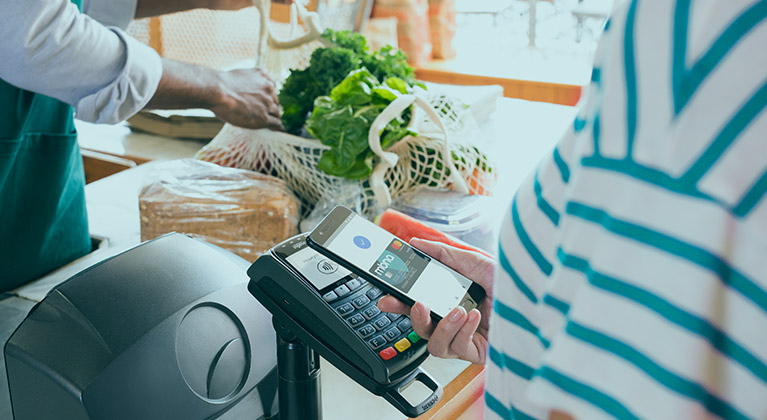
Where’s Google Pay accepted?
Anywhere you see the contactless or Google Pay logos. Look out for it in selected apps and websites too.
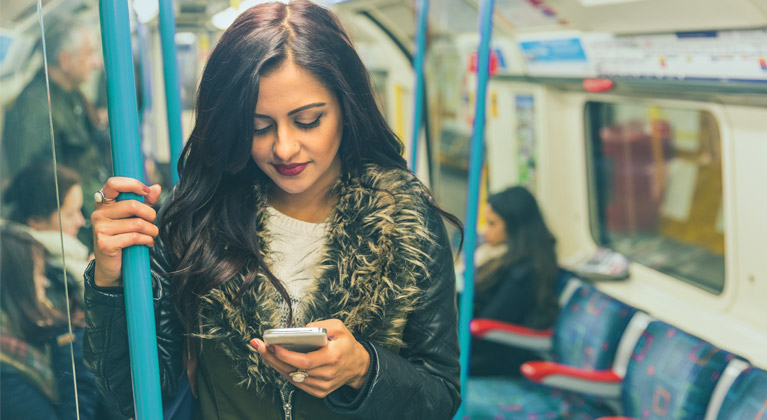
Getting around in London
Transport for London buses, DLR, Underground, National Rail and Thames Clippers also accept Apple Pay across their networks.
Keeping track
You’ll get a payment notification whenever you make a purchase. All purchases made using Google Pay will show on your statements as normal, and you’ll be able to see the last 10 transactions made with Google Pay on your device.
If you want to return an item, you’ll usually need to hold your device near the reader to receive a refund in store. Sometimes the retailer might have to make the refund back to your card instead. Any refunds will also show in the transactions section in the Google Pay app.

Need help?
You can always ask us if you need help using Google Pay, but there’s loads of technical stuff on the Google Pay help page you might find useful.

Things to consider
- If you make card purchases, you’ll pay interest on these transactions, unless you pay your statement balance in full, every month, or if you have a retail promotional interest rate of 0% on your account.
- If you’ve got a cashback credit card with MBNA, you’ll earn cashback at your usual rate on Google Pay transactions.
- Standard network charges may apply. Payment is only possible when 3G, 4G or a wireless internet connection is present. Transactions are subject to your existing MBNA credit card terms and conditions.
You might also like
Like using your smartphone for credit card stuff?
Check out our full range of mobile services.